Turn pictures into pixel charts for stitching and beading
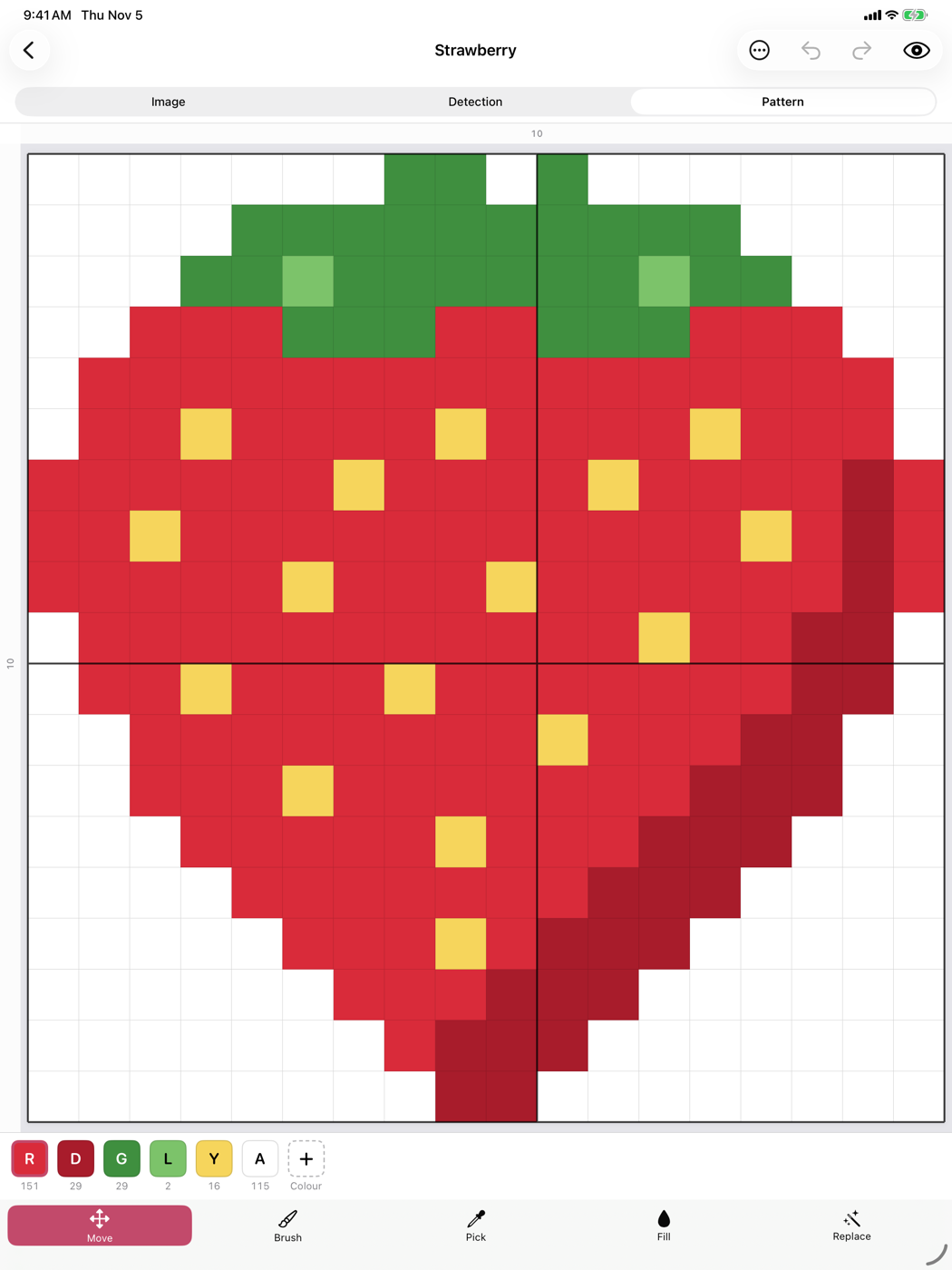
Rasterwerk detects the grid and colours, matches your pattern to the colours of embroidery floss and beads, and takes you through the chart row by row.
Coming soon to the App Store, for iPhone and iPad.
Everything for your chart
Empty picture
Choose a size and paint right on the grid.
Convert photo
Turn a photo into a pixel picture with as few colours as you like.
Improve pixel picture
Make a blurry photo or a screenshot of a chart clear and countable.
Real colours
Three palettes for floss and beads are included, and you can easily add your own.
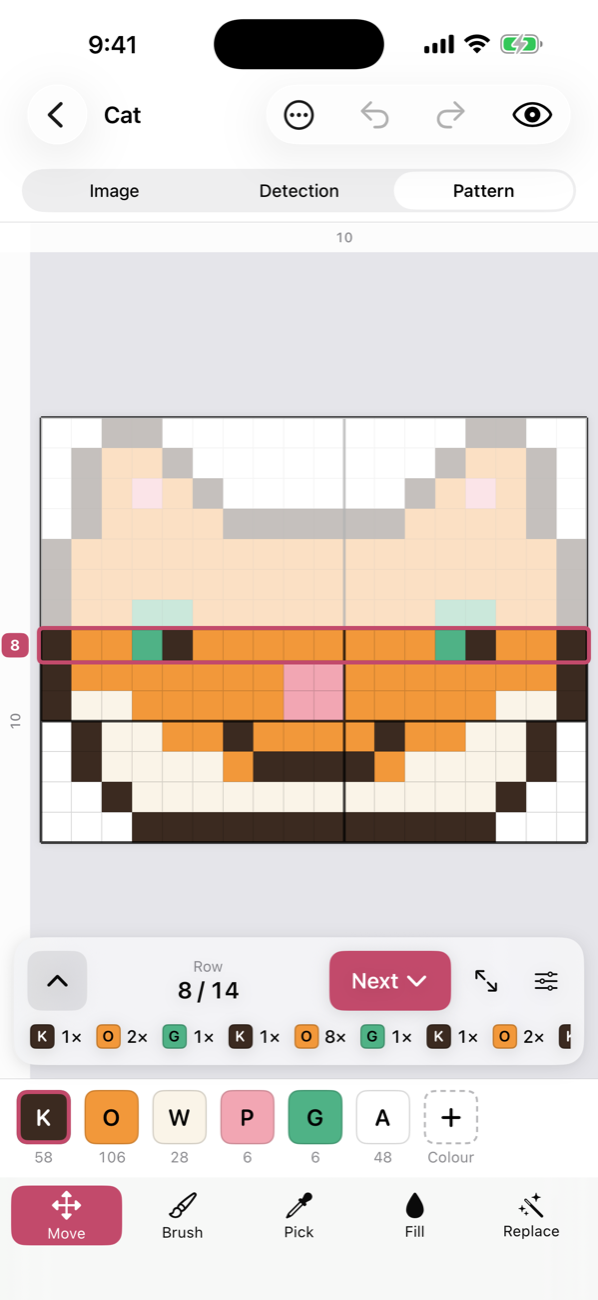
Work row by row
The ruler shows the current row with all its colour runs.
Export charts
PDF with grid, symbols and legend, or PNG files.
On all your devices
Projects and your own palettes sync through your iCloud.
Three projects are free
All features are included from the start. Rasterwerk Plus lets you create as many projects as you like: a one-time purchase with no subscription, 4.99 € in Germany. The App Store shows you the price for your country.
Your pictures stay with you
Image processing happens on your device. There is no account, no server, no advertising and no tracking. Read more in the privacy policy.
Help
Can't find your question? Write to apps@tsojka.com and mention your device and iOS version.
How do my projects get to my other device?
Sign in to iCloud with the same Apple Account on both devices and turn on iCloud Drive. Rasterwerk then syncs projects and your own palettes by itself. The project overview shows whether everything is in sync.
Why does a project have “(Conflict)” in its name?
The project was changed on two devices before they could sync. Rasterwerk then keeps both versions. Look at both and delete the one you no longer need.
What happens after the third project?
A fourth project needs Rasterwerk Plus. You can keep editing and exporting your existing projects without Plus.
I bought Plus, but it isn't unlocked.
Check that you are signed in with the Apple Account you bought it with. Then tap the Plus hint in the project overview and choose “Restore purchase”.
How do I get a refund?
Purchases go through Apple. You can request a refund at reportaproblem.apple.com.
How do I print or back up a chart?
Open the project, tap the menu at the top and choose “Export…”. For printing, use the PDF chart. For a backup you can also save the project file there and import it into Rasterwerk later.
The detection got something wrong.
Uncertain spots are marked so you can check them. Fix single cells with the brush, or change a colour across the whole picture with “Replace”.